SPA Installation Guide
Sunday, July 19, 2026 - 2 comments
School Performance Accelerator (SPA) Installation Guide
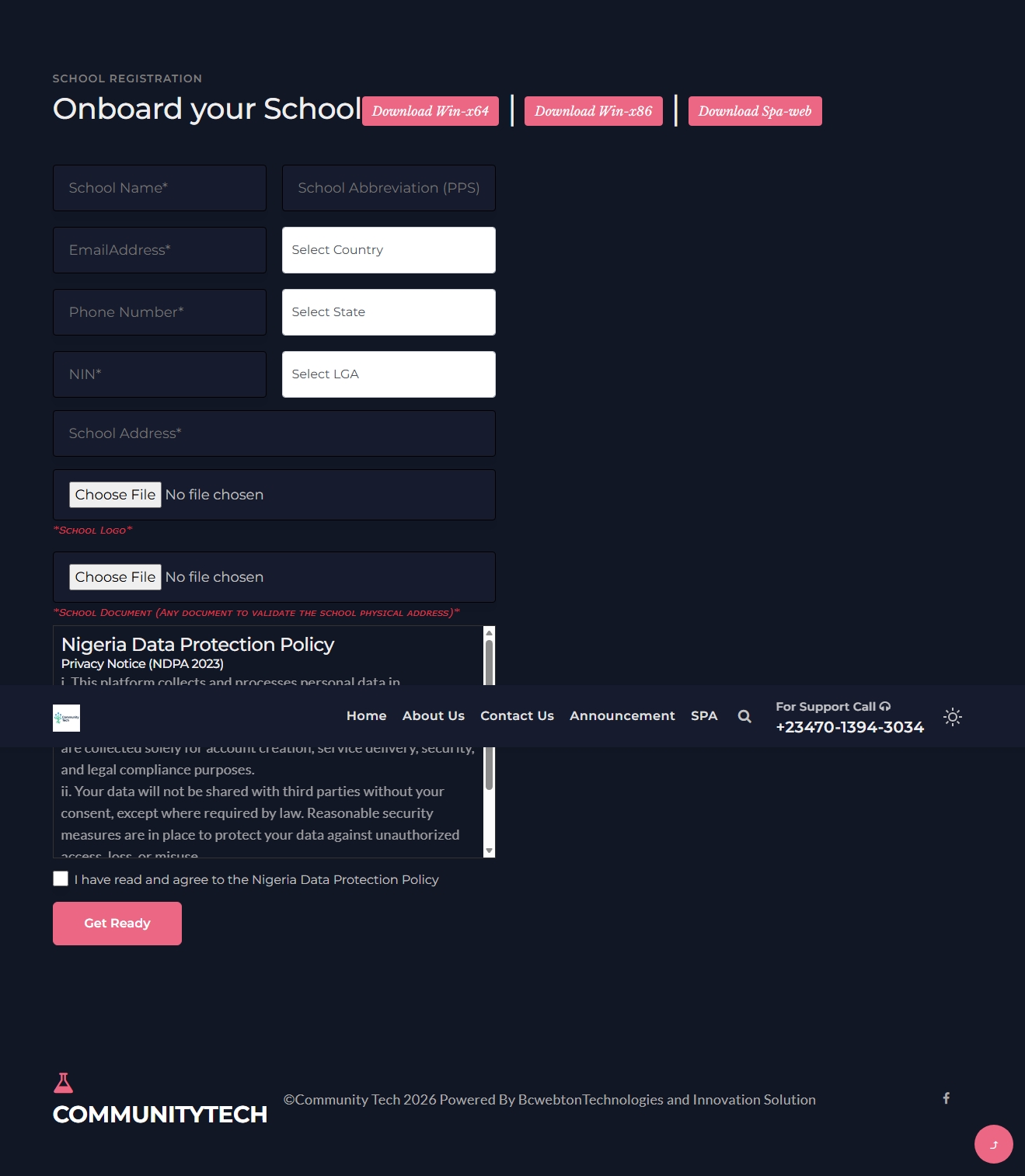
1. Registration
Visit: https://communitytech.bcwtis.com/spa/register
You’ll be redirected to the registration page.
Fill in all required details.
Click Register.
2. Receive Setup Credentials
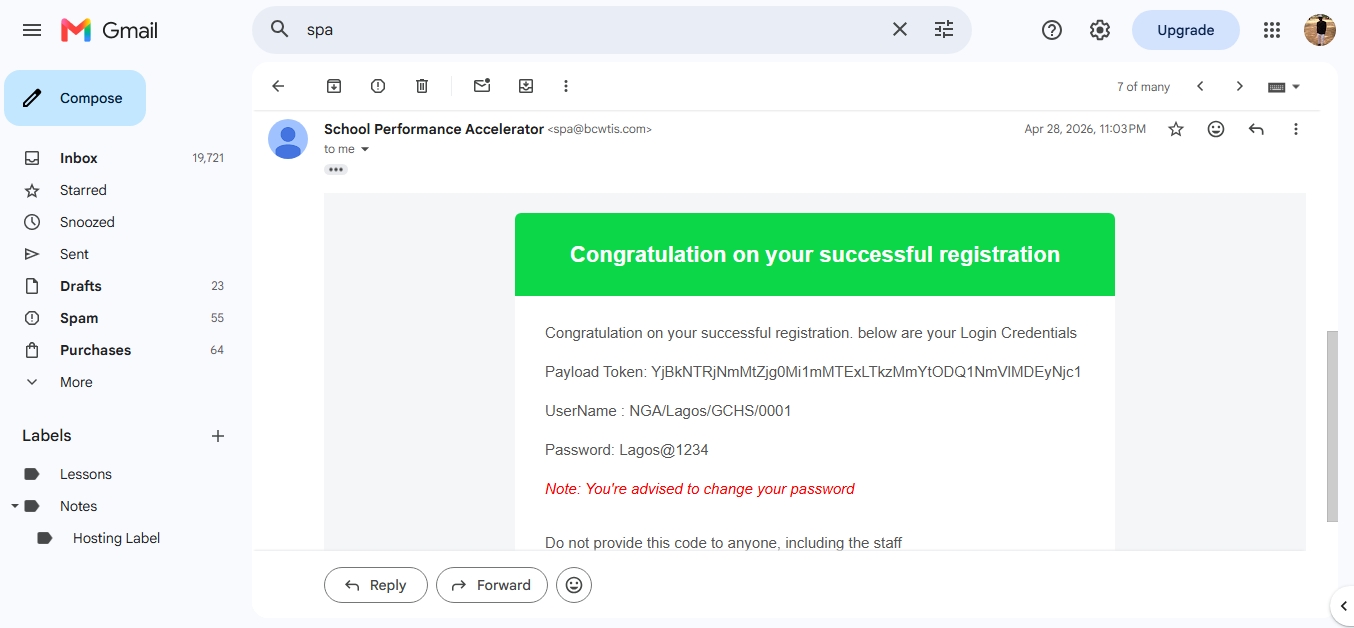
After successful registration, a notification will be sent to your email.
This message contains your setup credentials (token/payload).
3. Download SPA Installer
On the registration page, locate the system options above the form.
Select the version that matches your system:
Win-X86 (32-bit)
Win-X64 (64-bit)
Click to download the installer.
Spa-web for manual installation

4. Install the Application
Click on the downloaded .exe file.
Follow the installation prompts to install SPA on your computer.
5. Setup SPA on Your Local Machine
Launch the installed application and complete the setup:
Step 1: Enter your school abbr as domain name (easy to remember)
Step 2: Paste the token sent to your email (Payload)
.png)
6. System Restart
Your computer will automatically restart to complete installation of required packages.
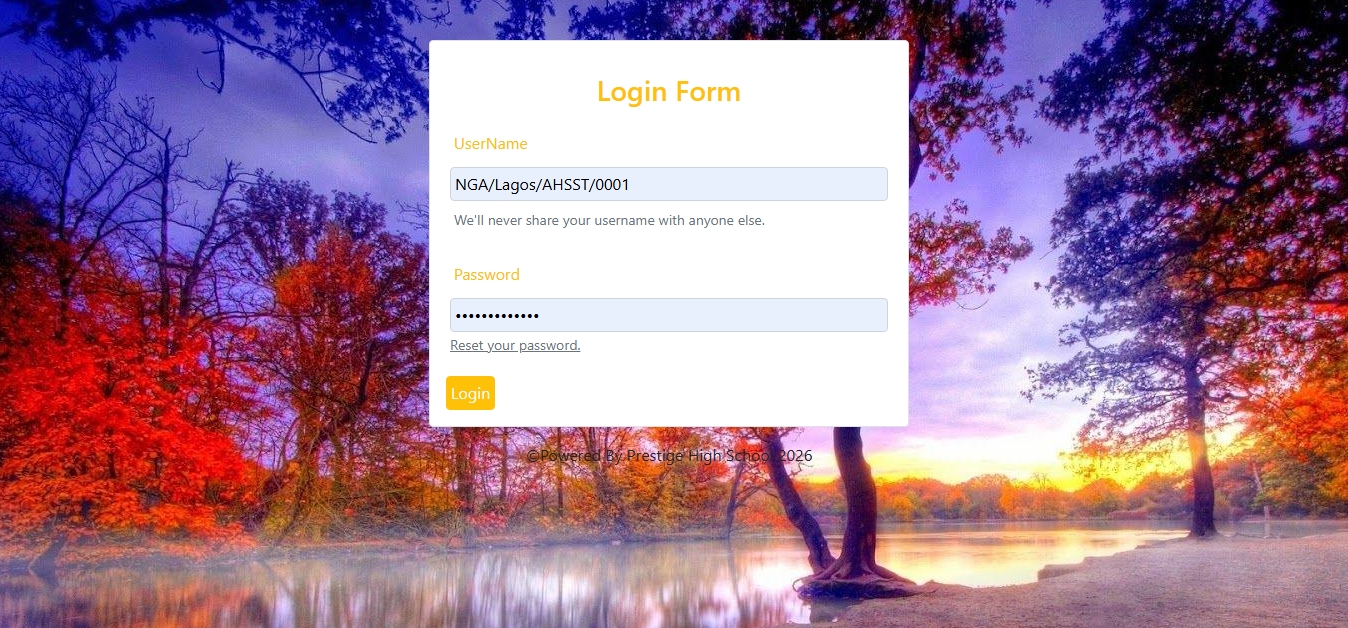
7. Access Your SPA Website
After restart, open the SPA installer again.
.png)
Use it to launch your configured domain in your web browser.
📌 Tips
Ensure you have a stable internet connection during setup.
Double-check your email for the correct token.
Choose a simple and memorable domain name.
Comments
Wow. This application is easy to understand and works perfectly great. Well done✅👍
This is really impressed