SPA Installation Guide
Sunday, July 19, 2026 - 2 comments

Academic operations refer to the administrative and organizational activities that support teaching, learning, and academic programs within a school. These operations ensure that education runs smoothly by managing the systems and processes necessary for effective classroom and institutional management. The key components of academic operations include:
1. ClassTeacher Management
2. Classroom Management
3. ClassSubject Management
4. Lesson Plan Management
5. Exam Management
6. Exam Result Management
7. Report Card Generation
8. Student and Parent Management
9. Staff Management
10. Attendance Management
11. Extracurricular Activities Management
SPA (School Performance Accelerator) provides an integrated platform to plan, organize, and monitor all these components efficiently.
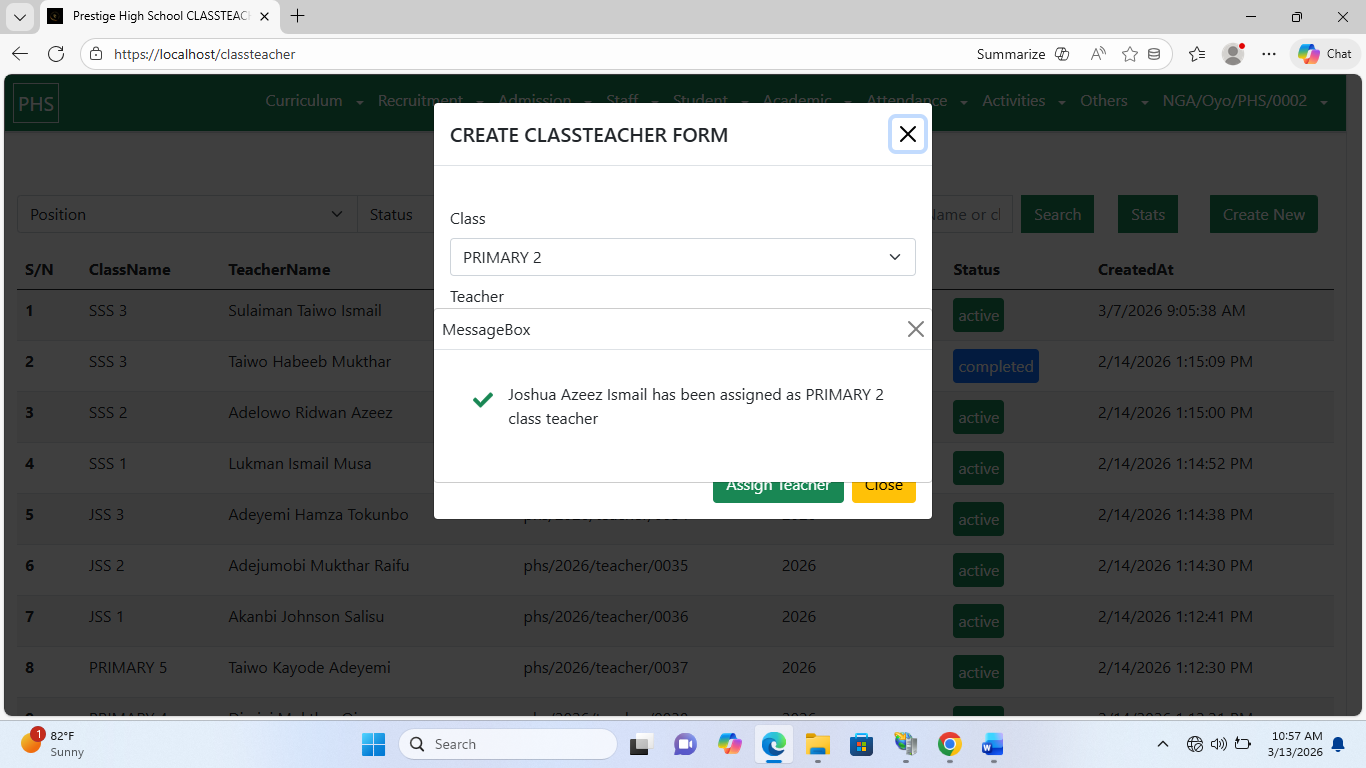
ClassTeacher management focuses on assigning the most suitable teacher to a specific class to ensure effective academic guidance. SPA automates the planning and organization of teachers.
Assigning a Teacher in SPA:
Navigate to the Academic dropdown and click Create New.
Fill in:
Class: Select the class to assign.
Teacher: Select the teacher.
Position: Choose ClassTeacher.
Click Assign Teacher.
Note: Each class can have only one ClassTeacher per academic year.


Classroom management involves organizing teachers, students, promotions, graduation, and preparation for new academic sessions. Rules for promotion and graduation are established here.
In SPA, classrooms are automatically organized based on enrollment, but can also be created manually by the principal or owner.
Automatic Creation: Classrooms are generated automatically after student enrollment is accepted.
Manual Creation: Administrators can manually assign students to classes:

Navigate to Academic → Classroom.
Click Add New.
Fill in: Class and Student, then click Add to Classroom.
Note: Search queries for classrooms use the @ symbol followed by the academic year (e.g., JSS1@2026).


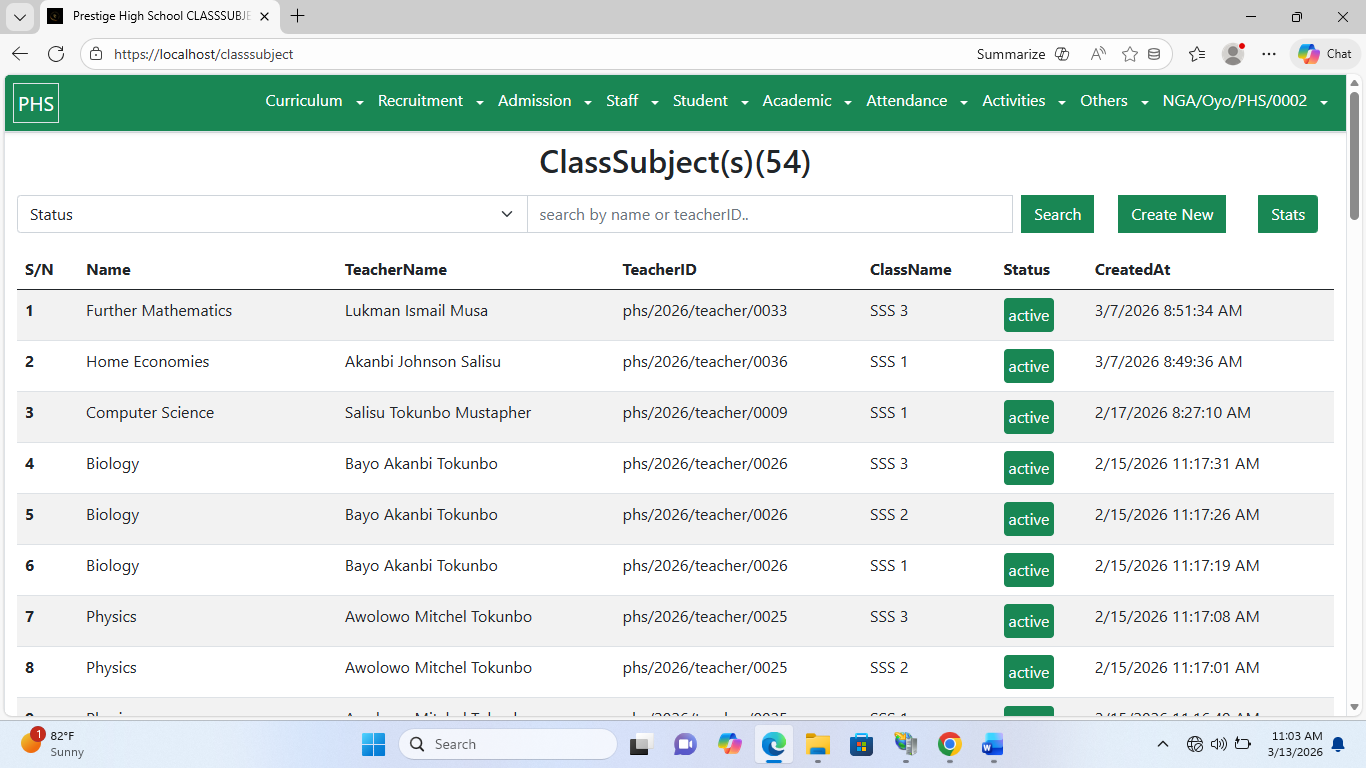
ClassSubject management organizes and assigns academic subjects to classes and teachers. SPA automatically ensures subjects align with the curriculum.

Assigning Subjects:
Navigate to Academic → ClassSubject.
Click Create New.
Fill in:
Subject: Choose the curriculum subject.
Teacher: Select the assigned teacher.
Click Assign Subject.


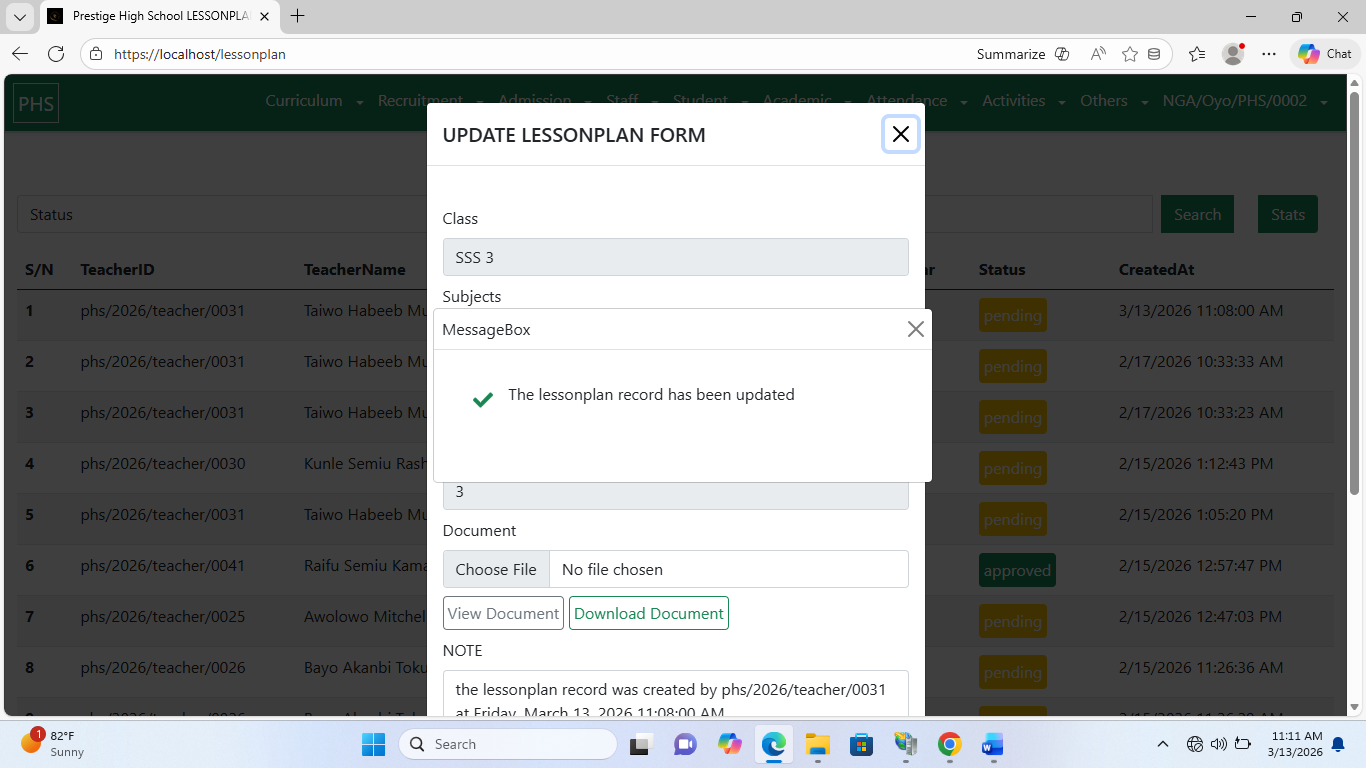
Lesson plans organize, implement, and monitor teaching to ensure consistency and effectiveness. SPA manages subjects, teachers, and lesson plans automatically.
As a Teacher:
Go to your Teacher Dashboard → LessonPlan.

Click Create New and fill in:
Class
Subject
Week
Document: Upload lesson plan in PDF format (≤10MB)
Click Submit LessonPlan for approval.


As Principal or Owner:

Navigate to Academic → LessonPlan.
Evaluate submitted plans.
Approve or disapprove, providing notes for revisions if necessary.

Exam management ensures proper creation, scheduling, and evaluation of exams.
As a Teacher:

Navigate to Teacher Dashboard → Exam.
Click Create New and fill in:
Class
Subject
Exam Date
Exam Document: PDF format (≤10MB)
Click Submit Exam for approval.

As Principal or Owner: Review, approve, or disapprove exams using the Academic → Exam section.


Exam result management ensures transparency in grading.

Uploading Results:
Navigate to Teacher Dashboard → ExamResult.
Click Upload Result and fill in:
Exam
Student ID
Scores: Exam, CA1, CA2, Assignment
Click Upload Result.


Report cards provide digital student performance records. Only Principals, SR, or Owners can generate report cards.

Generating a Report Card:
Navigate to Academic → Performance.
Input the student registration number.
Click Generate Report Card.

SPA allows administrators to organize student and parent data efficiently.
Managing Students: Dashboard → Student → Student
Managing Parents: Dashboard → Student → Parent
Note: Only Principal, SR, or Owner can manage students and parents.


Staff are categorized into Teaching and Administrative groups.

Managing Administrative Staff: Dashboard → Staff → Administration

Managing Teaching Staff: Dashboard → Staff → Teacher

Note: Only Principal, HR, or Owner can manage staff.
Attendance management tracks student and staff presence.

Clocking Students (ClassTeacher):
Dashboard → Attendance → Take Record
Select students and click Clock In


Clocking Staff (HR):
Dashboard → Attendance → Staff Attendance → Take Record
Input Staff ID and click Clock In
Note: Only ClassTeachers can clock students and only HR can clock staff.
Extracurricular management plans and monitors activities beyond the curriculum, such as sports, arts, clubs, and competitions.

Planning Events:
Dashboard → Activities → Event → Create New
Fill in: Name, Description, Event Start & End Dates, Location
Click Create Event


Recording Participants:

Dashboard → Activities → Participant → Take Record
Input Event and Student ID, then click Clock In

SPA streamlines academic operations, providing a structured and efficient approach to planning, monitoring, and executing all aspects of school academic life.
Comments