School Administration System ...
Tuesday, September 23, 2025 - 0 comments
The Task Management Module of the School Administration System (SAS) provides a structured, transparent, and automated way of assigning, monitoring, and evaluating staff responsibilities. Unlike traditional methods that rely on manual coordination, SAS automatically links recruitment, onboarding, and task assignment to ensure clarity, accountability, and efficiency.
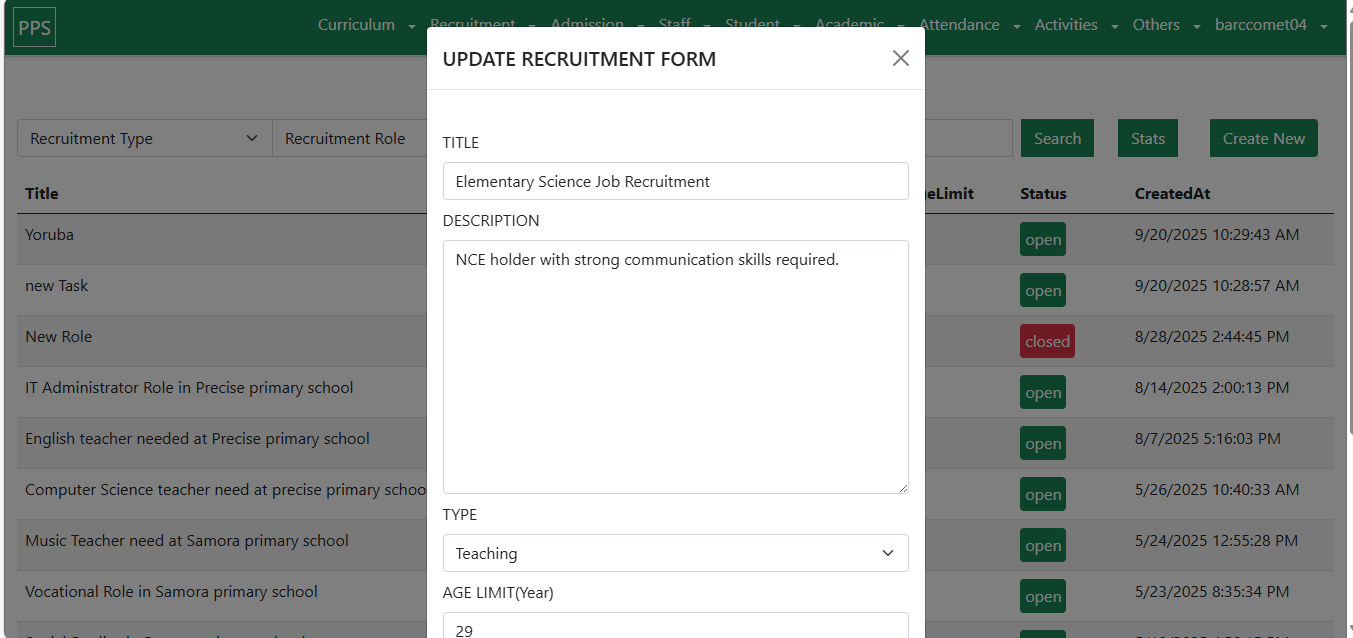
The Job Placement feature enables administrators to create and manage staff vacancies.
Steps to Create a Job Placement:
Navigate to Recruitment → Job Placement.
Select Create New Placement.
Fill in required fields:
Title → Job title (e.g., English Language Teacher at Precise Primary School).
Description → Job details (e.g., NCE holder with strong communication skills required).
Type → Teaching or Administration.
Age Limit → Maximum applicant age.
Role → Subject or administrative role.
Status → Open (visible to applicants) or Closed (hidden).
Click Create Placement.
Outcome:
A public job listing is created and remains open until the vacancy is filled.
⚠️ Warning: Only one active placement per role can exist. To advertise a new vacancy for the same role, the previous one must be closed first.
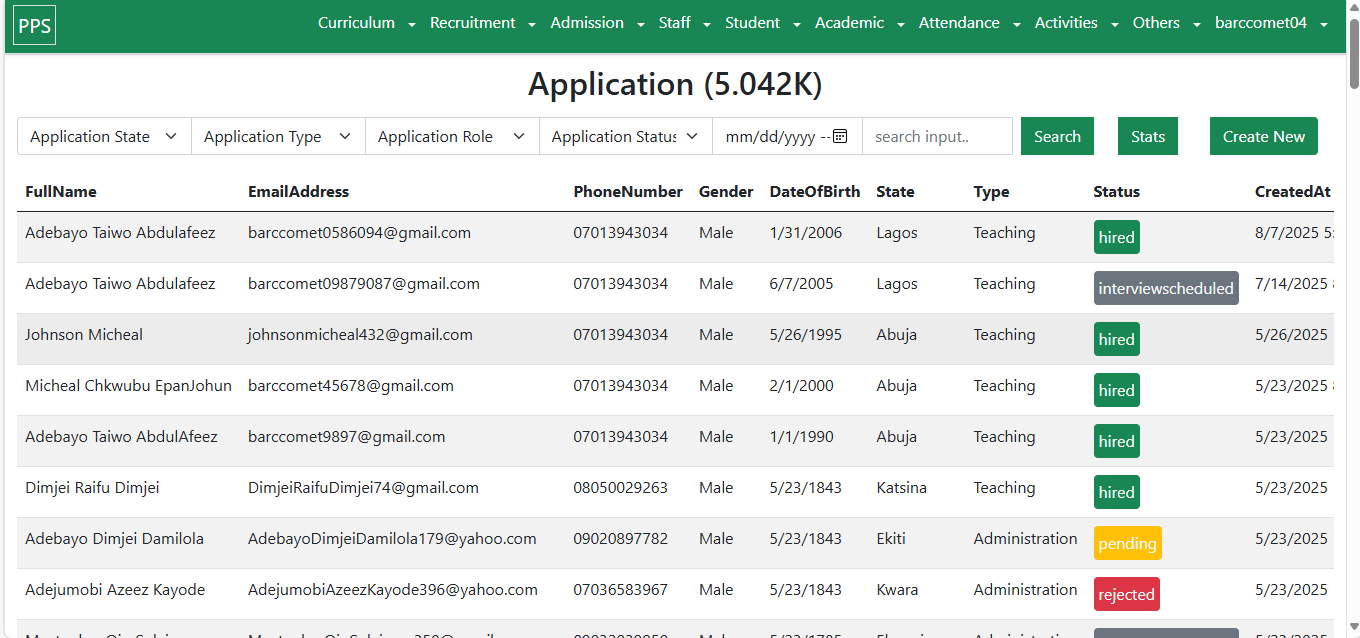
The Applicant Management feature tracks applications, interviews, and potential hires.
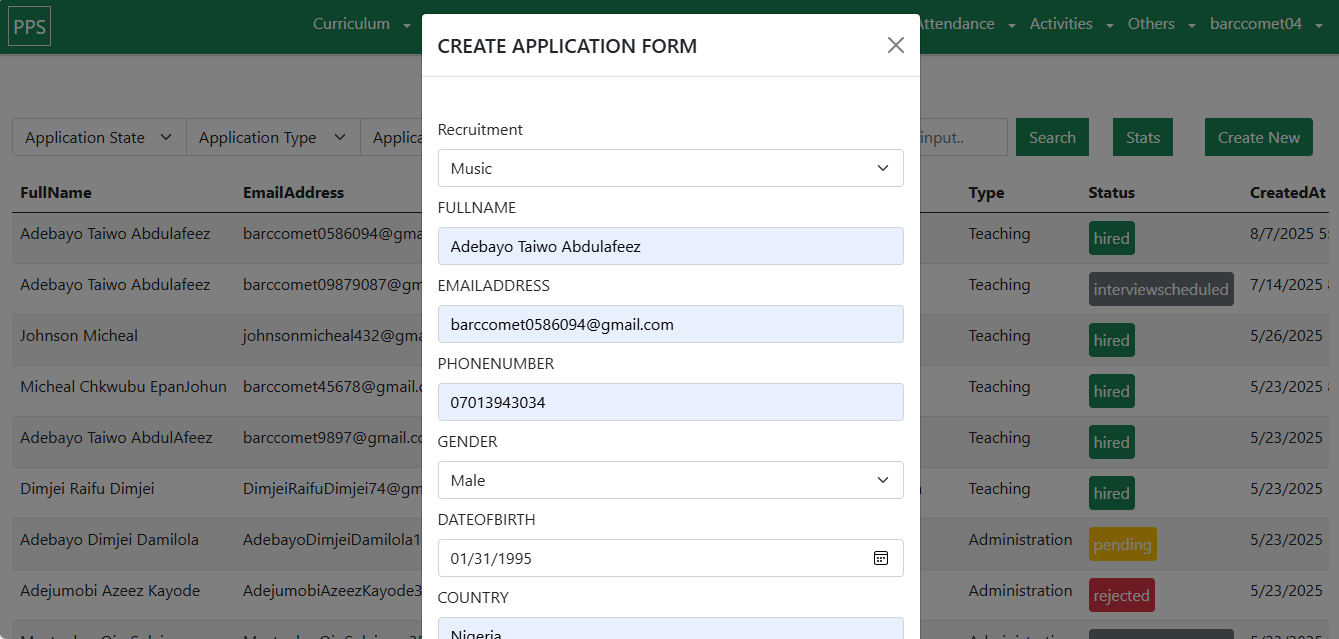
Steps to Add a New Applicant:
Navigate to Recruitment → Applicants.
Select Create New Applicant.
Provide applicant details:
Recruitment → The job placement being applied for.
Full Name, Email, Phone, Gender, Date of Birth.
Country & State (supports Nigeria only).
Application Type → Teaching or Administration.
Resume/CV → Upload in PDF format.
Click Create Application.
Outcome:
An applicant profile is securely stored in SAS for administrator review.
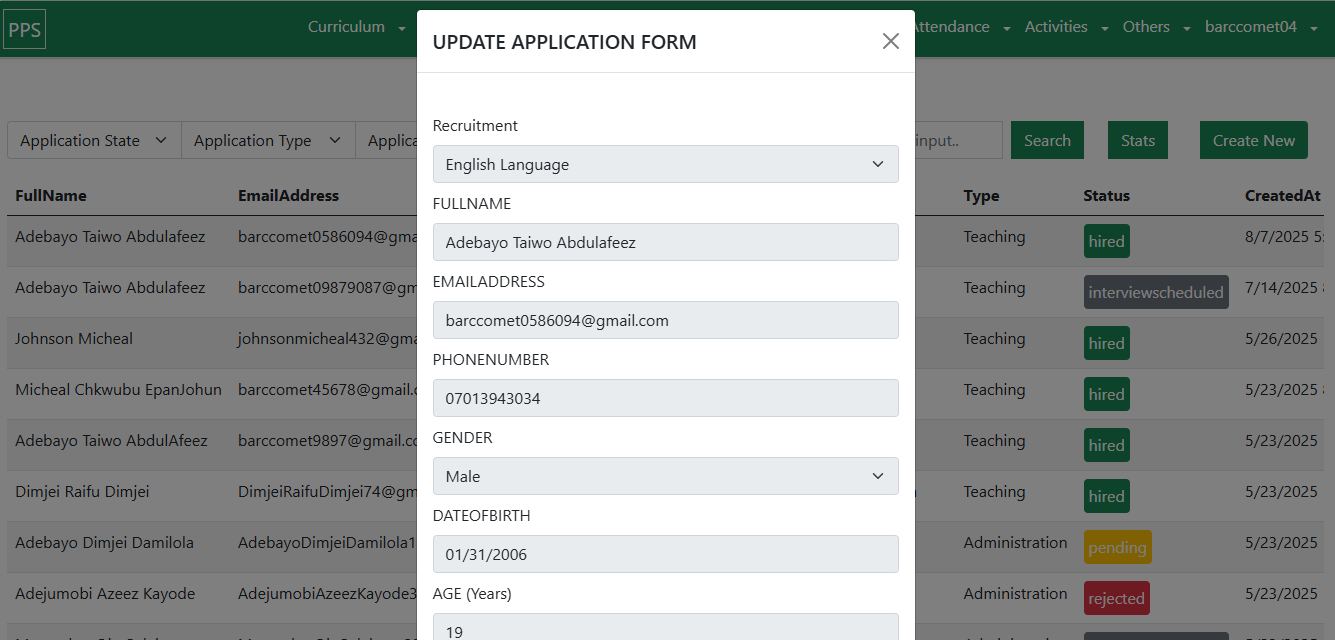
SAS combines automated checks (e.g., duplicate detection, age validation) with manual administrator review.
Process for Evaluating Applicants:
Navigate to Recruitment → Applicants.
Select the applicant to review.
Assess submitted details and download/view the CV.
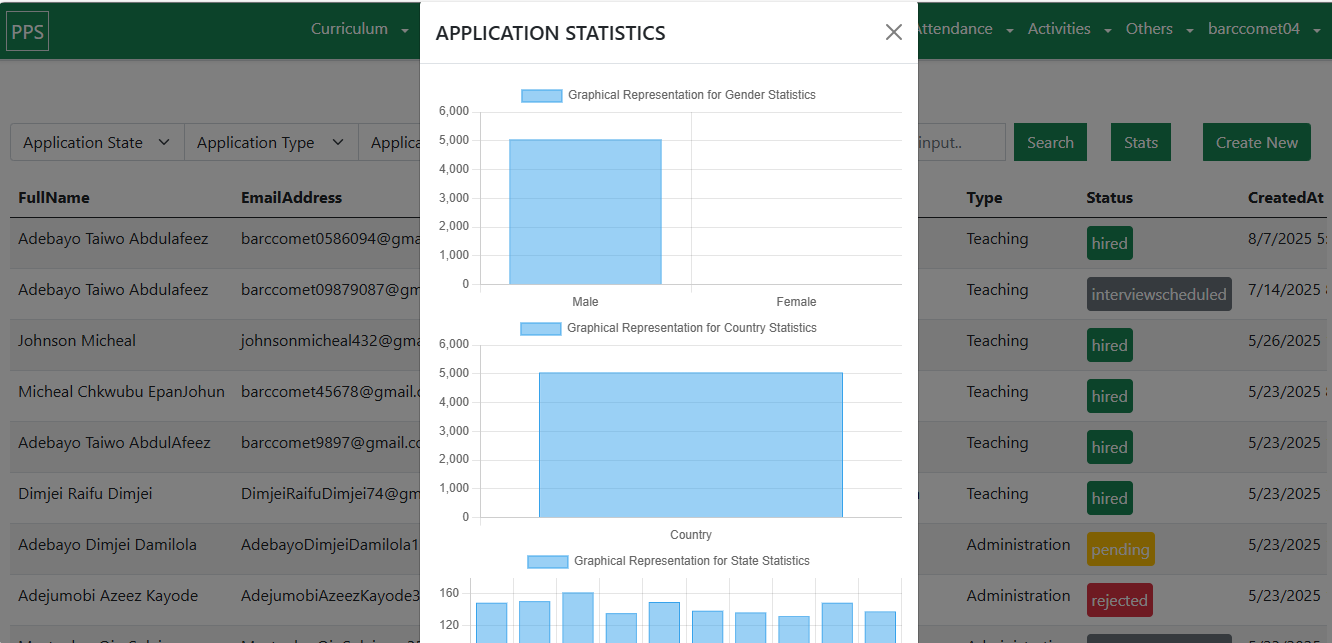
Update the Application Status:
Pending → Awaiting review.
Interview Scheduled → Candidate shortlisted, interview date communicated by email.
Hired → Candidate passes evaluation; automatically onboarded as staff.
Rejected → Candidate not considered.
Outcome:
If Hired, the applicant is automatically:
Assigned a unique Staff ID.
Onboarded to the Staff Dashboard.
Integrated into Task Management.
Once staff are onboarded, SAS automatically distributes tasks according to role:
Teaching Staff → Assigned subjects, lesson planning, classroom management, and exam preparation.
Administrative Staff → Assigned duties in finance, HR, IT, or facilities management.
Outcome:
Tasks are automatically aligned with the staff member’s position.
Administrators can monitor, reassign, or update tasks via the Staff Dashboard.
The Task Management Module eliminates ambiguity in staff roles by:
Streamlining recruitment.
Structuring applicant evaluation.
Automating staff task assignments.
Through this integration, SAS enhances efficiency, transparency, and accountability in daily school operations.
Comments